サイレント・キラー:なぜAIはあなたの多言語サイトを読むと「幻覚」を起こすのか

by マルチリピ
AI を使用して Web サイトを翻訳 し、SEO の問題を修正し、スマートなコンテンツの提案を取得し、チームとコラボレーションします。120+言語で起動し、分析とクイック編集が可能
4.8

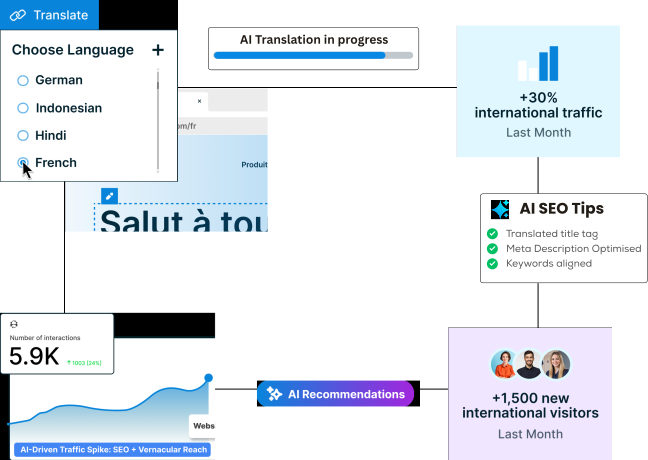
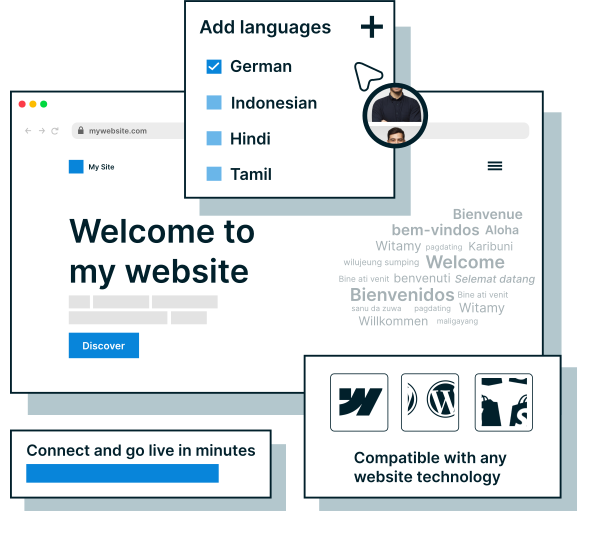
MultiLipiを任意のWebサイトに追加すると、完全に翻訳されたSEOに最適化されたサイトを数分で取得できます。no-code統合により、誰でも設定できます。数回クリックするだけでライブ配信が開始されます。
統合を見る複雑なセットアップで速度を落とさないでください。MultiLipiを使用すると、AIを使用して、Webサイトを120+言語に即座に翻訳 できます。SEO のギャップ、未翻訳のコンテンツ、メタデータの問題を検出し、数回クリックするだけで修正します。技術的なスキルは必要ありません。
MultiLipiの機能についてもっと知る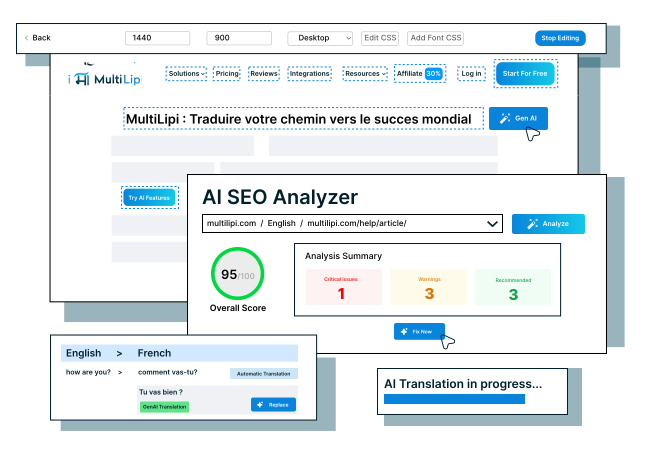
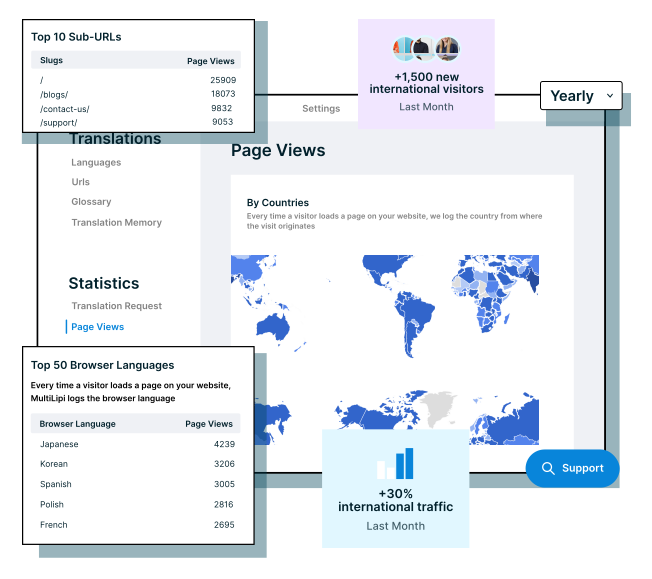
MultiLipiの組み込み分析機能を使用して、上位の言語と訪問者の場所を追跡します。よりスマートなローカリゼーションの意思決定を行い、エンゲージメントを高めることをすべて1つのダッシュボードから行うことができます。
MultiLipiのその他の機能を見るMultiLipiを使用して、language-sp ecific URL、hreflangタグ、翻訳されたメタデータを自動的に生成します。多言語サイトはインデックスに登録され、ランク付けされるため、国際的なトラフィックと可視性を簡単に増やすことができます。
多言語SEOについてもっと読む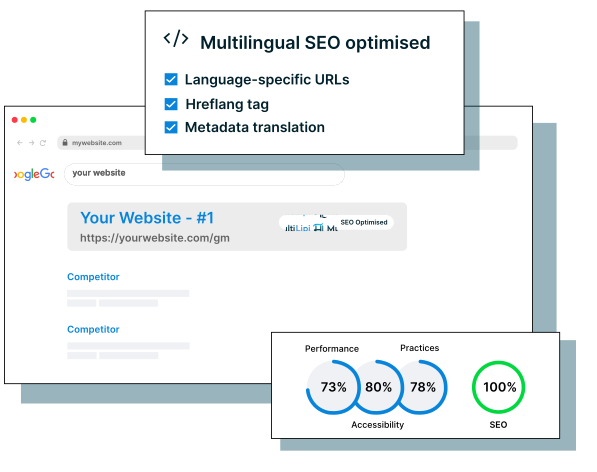
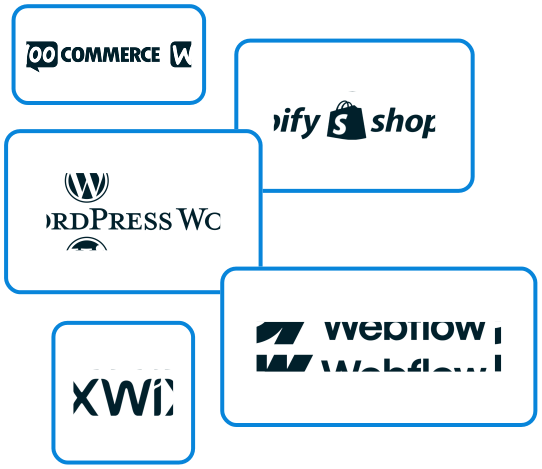
MultiLipi は、WordPress、Shopify、WooCommerce、Webflow、Wix などのプラットフォームと完全に連携します。CMS を実行している場合でも、カスタム技術スタックを実行している場合でも、サイトの動作を変更することなく、あらゆる Web サイトを簡単に翻訳し、多言語サイトを立ち上げることができます。
「新しい市場にリーチし、オーガニックトラフィックを増やし、ローカル検索結果で上位にランクインします。」
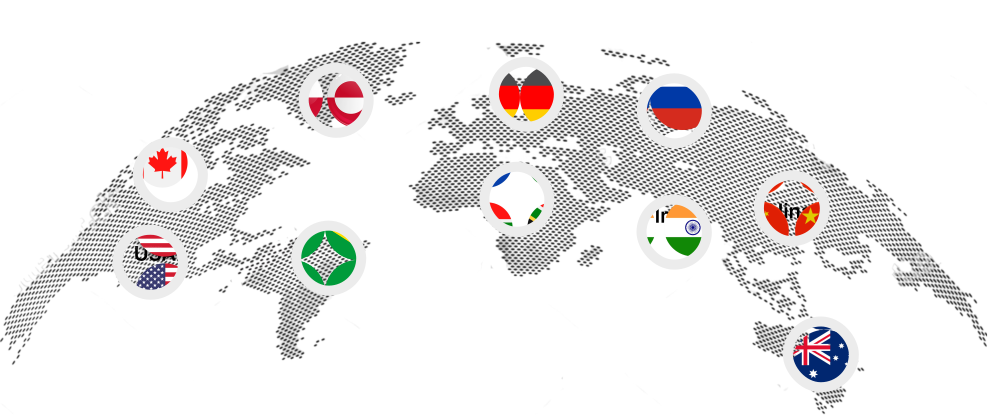
「言語の壁を打ち破り、国際的に成長するために私たちを頼りにしているグローバルブランドに参加してください。」





















「私たちの顧客は私たちの製品を愛しています。私たちとの経験について彼らが言わなければならないことは次のとおりです。」
by マルチリピ


by マルチリピ


by マルチリピ


by マルチリピ

by マルチリピ


by マルチリピ


by マルチリピ


by マルチリピ

by マルチリピ

MultiLipiにすぐにアクセスして、Webサイトを120+言語に翻訳するのがいかに簡単かを体験してください。クレジットカードなし、セットアップなし、 手間なし。永久に無料で使用することも、いつでもアップグレードして、多言語 SEO や翻訳メモリなどのプレミアム機能のロックを解除することもできます。