HELP ARTICLE

How to Add Members to My Project in MultiLipi

MultiLipi
MultiLipi 6/19/2025
5 Mins読む

Collaboration is essential for global scale, but data security is paramount. MultiLipi's Team Workspace allows you to provision access to translators, developers, and project managers without sharing sensitive login credentials. You can assign granular permissions, ensuring team members interact only with the specific projects and tools required for their role.

This blueprint covers the lifecycle of user management: Provisioning, Auditing、そして Deprovisioning.

Role-Based Access Control (RBAC)

Never share your master credentials. Instead, create individualized accounts with permissions tailored to each user's responsibilities. This ensures full audit trails and the ability to instantly revoke access when team members transition.

1. Accessing the Team Directory

The Team tab serves as the central command center for all user permissions.

Navigate

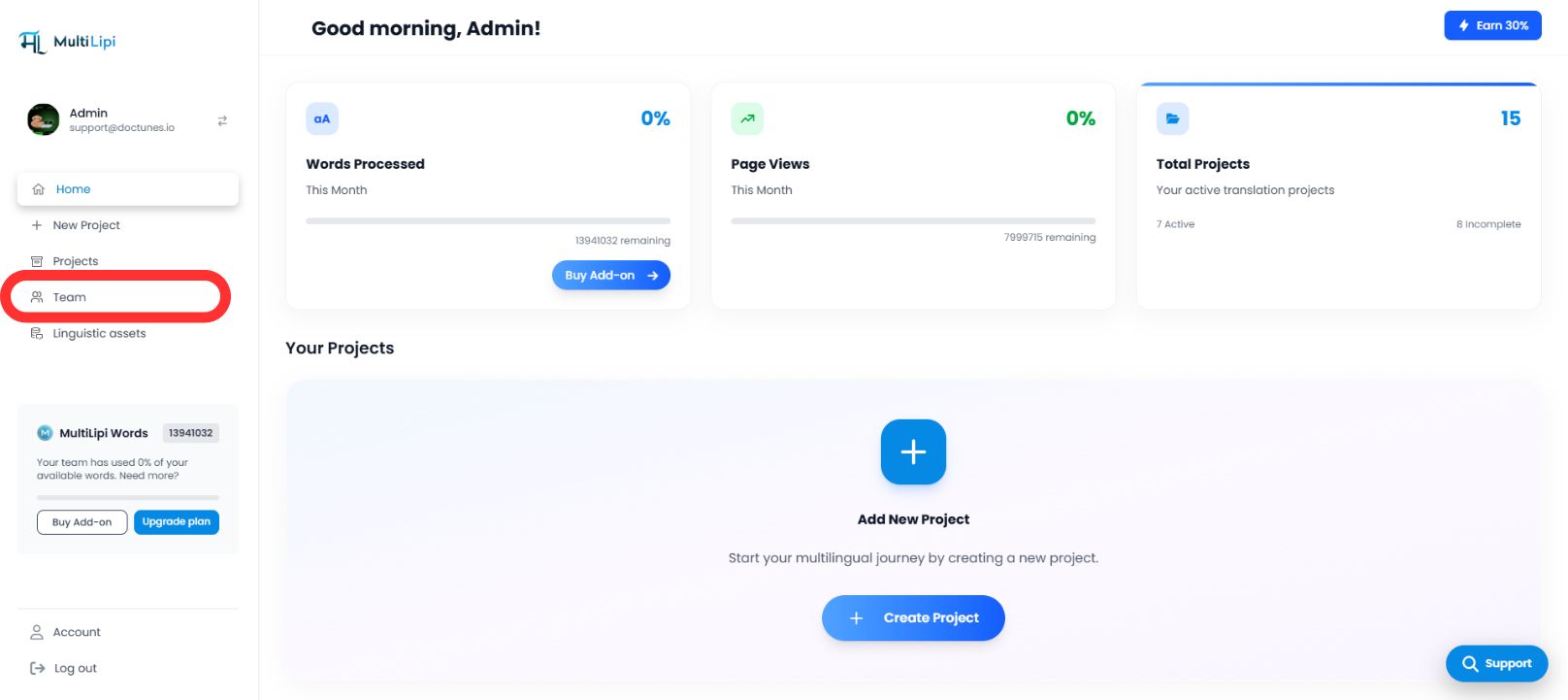
From your MultiLipi Dashboard sidebar, select Team.

Audit View

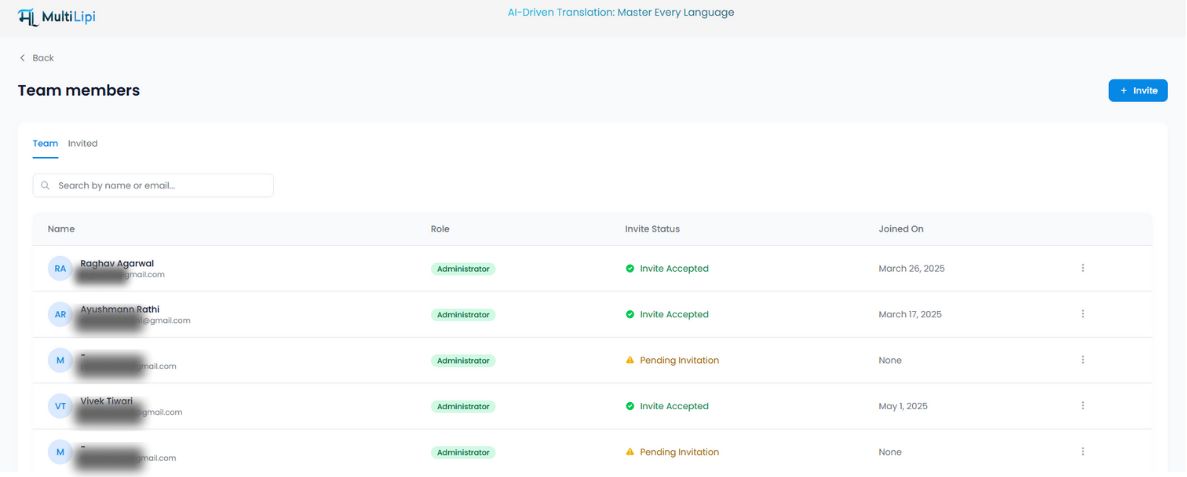
You will see a unified table listing all active users, their assigned roles, access scope (specific domains), and current status (アクティブ vs. Pending Invite).

MultiLipi Dashboard showing Team menu item highlighted in red circle on the left sidebar navigation
Team members page displaying list of team members with their roles, invite status, and joined dates in a clean table layout

2. Provisioning Access (Inviting Members)

To onboard a new collaborator:

1

Initiate Invite

Click the Invite button in the top-right corner of the workspace.

2

Define Credentials

メール

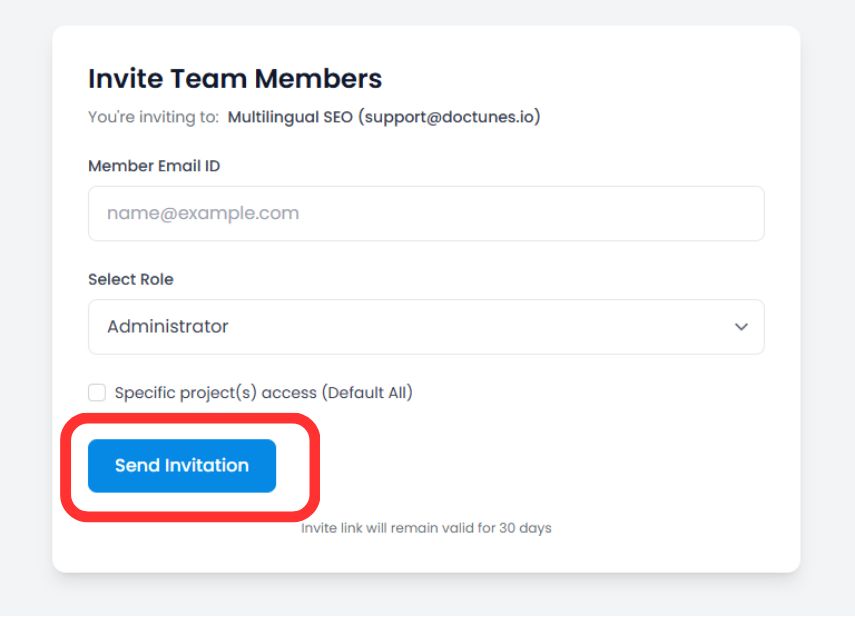
Enter the corporate email address of the user.

Role Assignment

Select the appropriate privilege level (e.g., Administrator for full control, Contributor for translation editing only).

Project Scope (Optional)

Restrict the user to specific domains (e.g., Assign "Translator A" only to the German project).

3

Deploy Invitation

Click Invite via Mail.

Security Note

The secure invitation link expires automatically in 30 days to prevent unauthorized access from stale links.

Invite Team Members modal showing email input field, role dropdown set to Administrator, and Send Invitation button highlighted in red

3. Managing Access Lifecycles

Governance is an ongoing process. You can modify or revoke permissions instantly as team structures change.

Modifying Roles (The "Edit" Function)

If a user needs elevated privileges or access to a new project:

Locate the user in the Team table.

Click the Three Dots (⋮) icon in the Actions column.

Select Edit.

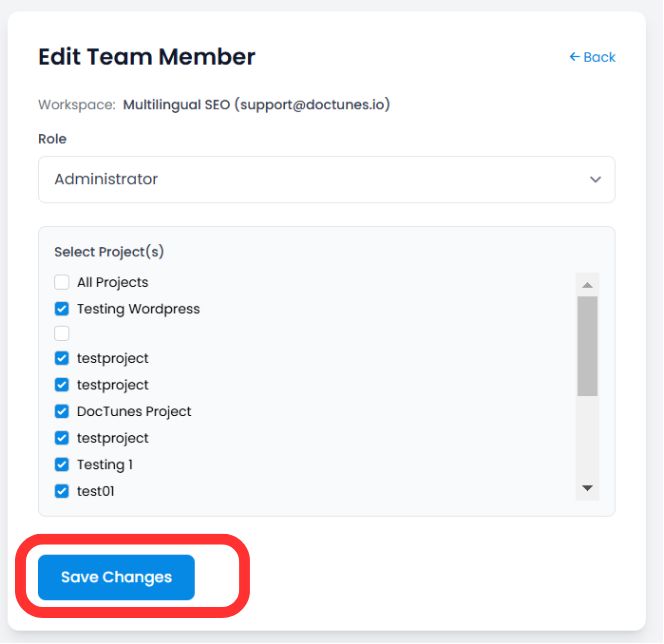
Update their Role or Project Assignment and click Save Changes. The new permissions apply immediately.

Edit Team Member modal displaying role dropdown and project selection checkboxes with Save Changes button highlighted in red

Revoking Access (Offboarding)

When a team member leaves or a contract ends, secure their account immediately:

Step 1

Click the Trash/Remove Icon in the Actions column.

Step 2

Confirm the removal.

Impact

The user's session is terminated, and they lose access to the dashboard instantly.

Summary: Collaboration Best Practices

ActionBest Practice
Role AssignmentUse the Principle of Least Privilege. Only grant Administrator access to trusted stakeholders.
Project ScopingIsolate external agencies to specific projects to prevent them from viewing unrelated data.
Periodic AuditsReview the Team tab monthly to remove inactive users or pending invites.

🔒 Security at Scale: By implementing granular RBAC, you ensure that your translation operations can scale globally without compromising data integrity or exposing sensitive project information to unauthorized team members.

Was this article helpful?

この記事では

共有

グローバル展開の準備はできましたか?

MultiLipiがコンテンツ戦略をどのように変革し、AI搭載の多言語最適化でグローバルなオーディエンスにリーチできるようになるか、ぜひご相談ください。

フォームにご記入いただければ、24時間以内に担当チームよりご連絡いたします。