
自動翻訳はベースラインを提供しますが、完璧なローカライゼーションにはしばしばニュアンスが必要です。MultiLipiは 生成提案エンジン 直接編集ワークフローに。モバイル画面に収まるようにヘッドラインを短くする必要がある場合でも、法律上の免責事項をより正式に聞こえるようにする必要がある場合でも、3つの特定の環境でオンデマンドAI書き直しをトリガーできます。
このガイドでは、 サイドバイサイドエディター, 仮想エディタ、および バリエーションエンジン.
1. サイドバイサイドエディター(Precision Workbench)
詳細な制御のためのコードビュー環境。
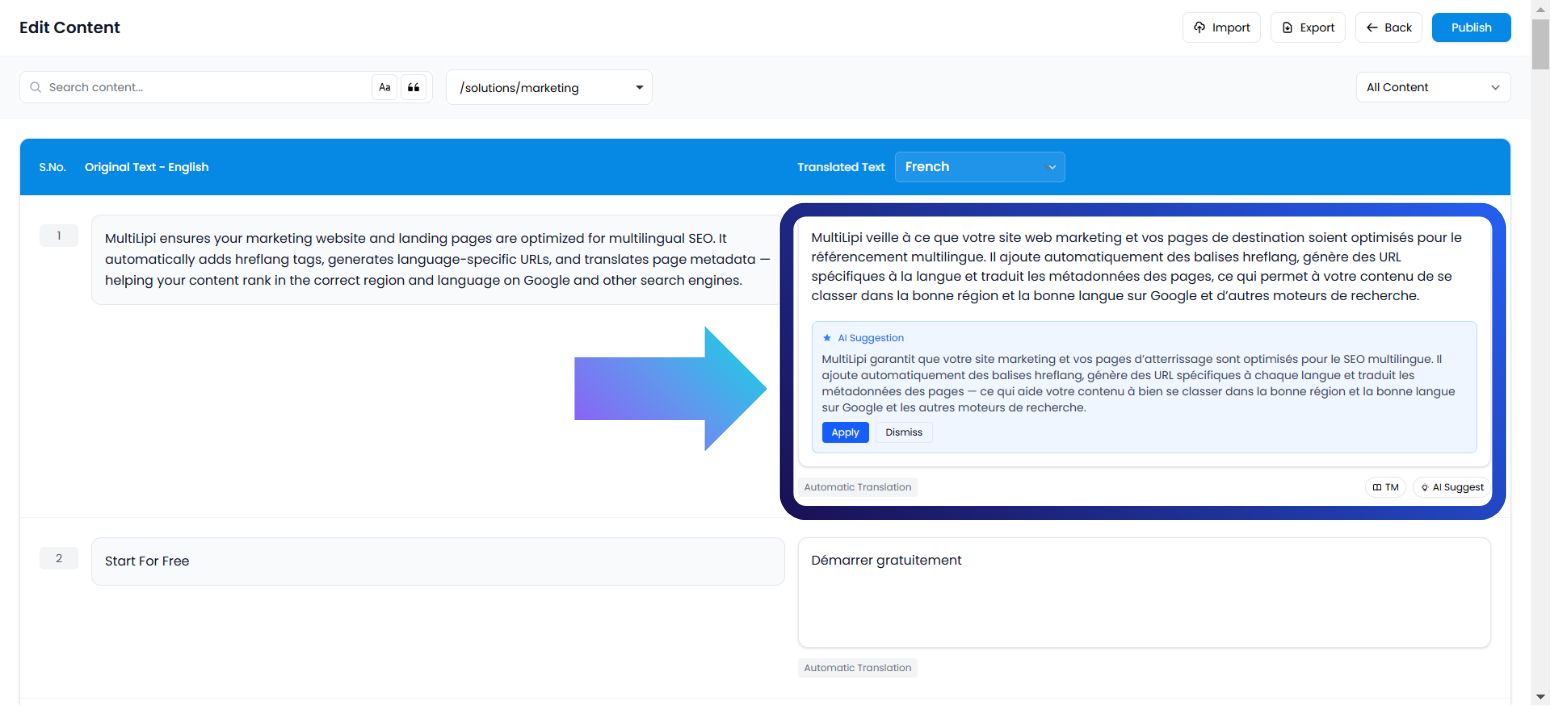
このインターフェイスは、コンテンツをソースとターゲットの文字列ペアの構造化されたリストとして表示します。視覚的な distractions なしでテキストに集中する必要がある言語学者や編集者にとって理想的な環境です。
ユースケース:
特定の文をSEOフレンドリーにするために言い換えたり、密集した段落の文法的なニュアンスを修正したりすること。
実行プロトコル:
ダッシュボードにアクセス: MultiLipiコマンドセンターにログインしてください。
プロジェクトを選択: 特定のプロジェクトタイルをクリックします。
ナビゲート: を開く 言語 タブ。
インターフェイスの起動: 選択 サイドバイサイドエディター オプションから。
AIをトリガー: 特定のテキストブロックを検索します。翻訳された側(右列)で、クリックします AI提案 ボタン。
コミット:
適用: 現在のテキストを AI バージョンに置き換えます (クォータを消費します)。
却下: 提案を却下します (コストゼロ)。
2. バーチャル エディター (オーバーレイ環境)
WYSIWYG(What You See Is What You Get)コンテキスト。
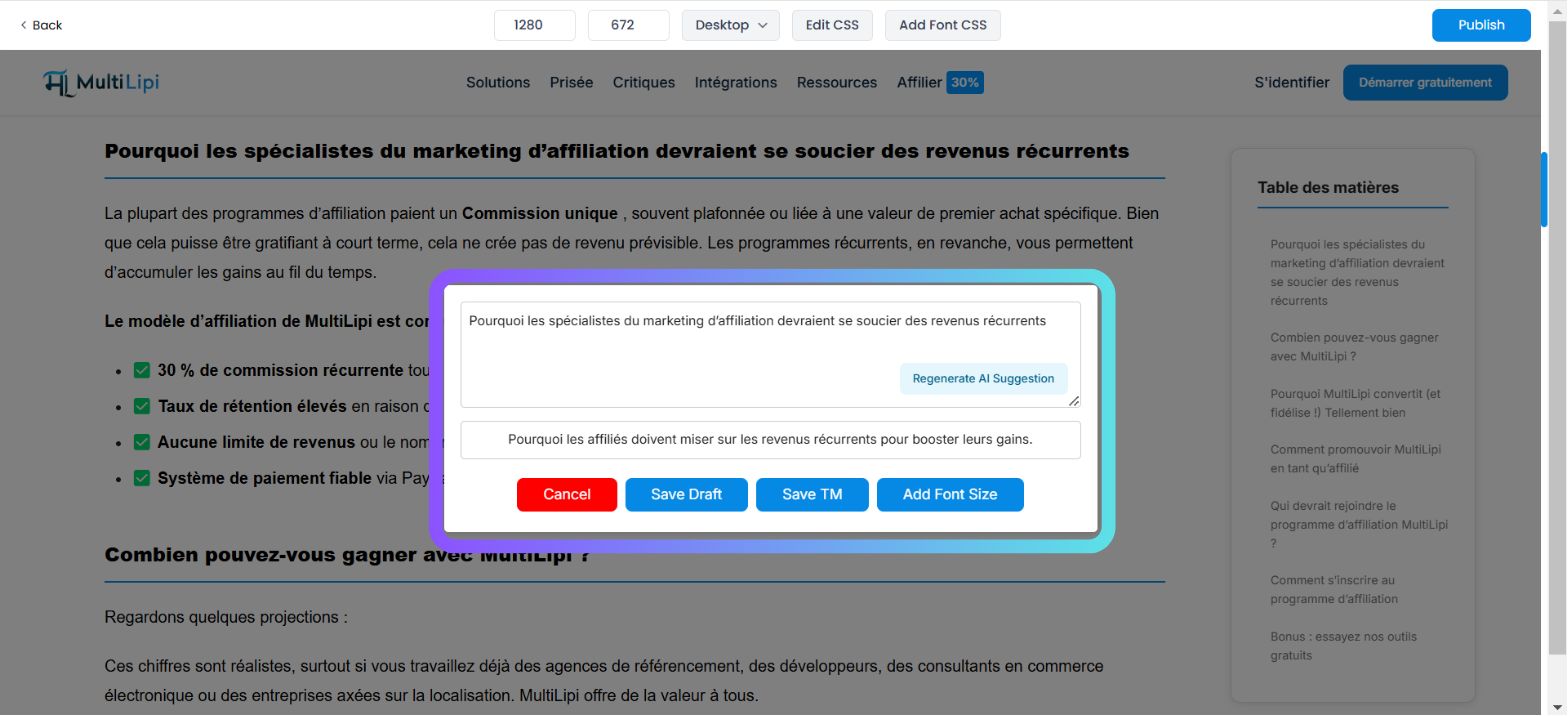
このインターフェイスは、ライブウェブサイトの上に翻訳エンジンをオーバーレイします。テキストを「インサイチュ」で編集できるため、新しい翻訳がボタン、バナー、メニューの視覚的な境界内に収まることを保証します。
ユースケース:
レイアウトを壊しているブログのタイトルを短くしたり、行動喚起(CTA)ボタンをより印象的に書き直したりします。
実行プロトコル:
ナビゲート: ダッシュボード → プロジェクト → URL に移動します。
プレビューを起動: クリック 編集 の下にある 仮想プレビュー 特定のページのカラム。
要素を選択: ライブプレビューで編集可能なテキストブロックをホバーしてクリックします。
AIをトリガー: タップ AI提案 ポップアップツールバーのボタン。
コミット: 生成されたオプションを確認し、クリックします 適用 レイアウトに収まる場合。
3. 変数エンジン(文体多様性)
意味的に類似した代替案を生成します。
1つの翻訳だけでは不十分な場合があります。Variability Engineは、同じ文章の複数のスタイルバージョンを生成し、ブランドボイス(例:プロフェッショナル vs. 説得力がある vs. 簡潔)に最も適したものを選択できるようにします。
ユースケース:
ランディングページの見出しの異なるマーケティングフックのA/Bテスト。
実行プロトコル:
設定にアクセス: プロジェクトダッシュボードを開きます。
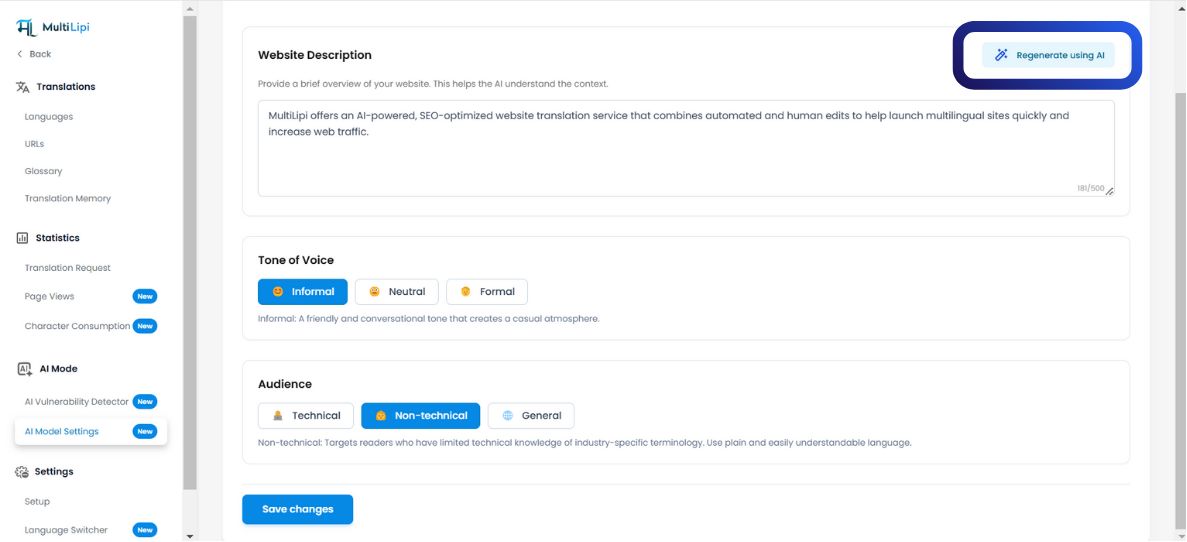
ナビゲート: 探す AIモード サイドバーのセクション。
設定: をクリックしてください AIモデル設定 アイコン。
生成: 希望するものを選択 AI コンテンツ形式。システムは文の構造に基づいて複数のバリエーションを提示します。
クイック適用: 翻訳メモリを即座に更新したいバージョンを選択します。
4. クォータ ガバナンス (請求ロジック)
生成コストの理解。
クレジットがプランから差し引かれるタイミングを理解することは非常に重要です。
| アクション | クォータへの影響 |
|---|---|
| 提案を表示 | 無料。 プレビューの生成にはクレジットはかかりません。 |
| 提案を適用 | 課金対象。 クォータは「適用」をクリックしたときにのみ差し引かれます。 |
| 提案を却下 | 無料。 AI ドラフトを却下しても費用はかかりません。 |
プラン注記:
無料プランにはAI単語消費に厳しい上限があります。有料プランは、エンタープライズ契約に応じて、拡張または無制限の生成制限を提供します。