
Automated translation provides the baseline, but perfect localization often requires nuance. MultiLipi integrates a Generative Suggestion Engine directly into your editing workflow. Whether you need to shorten a headline to fit a mobile screen or make a legal disclaimer sound more formal, you can trigger on-demand AI rewrites in three specific environments.
This guide details the operational protocols for the サイドバイサイドエディター , Virtual Editor, and the Variability Engine.
1. The Side-by-Side Editor (Precision Workbench)
The code-view environment for granular control.
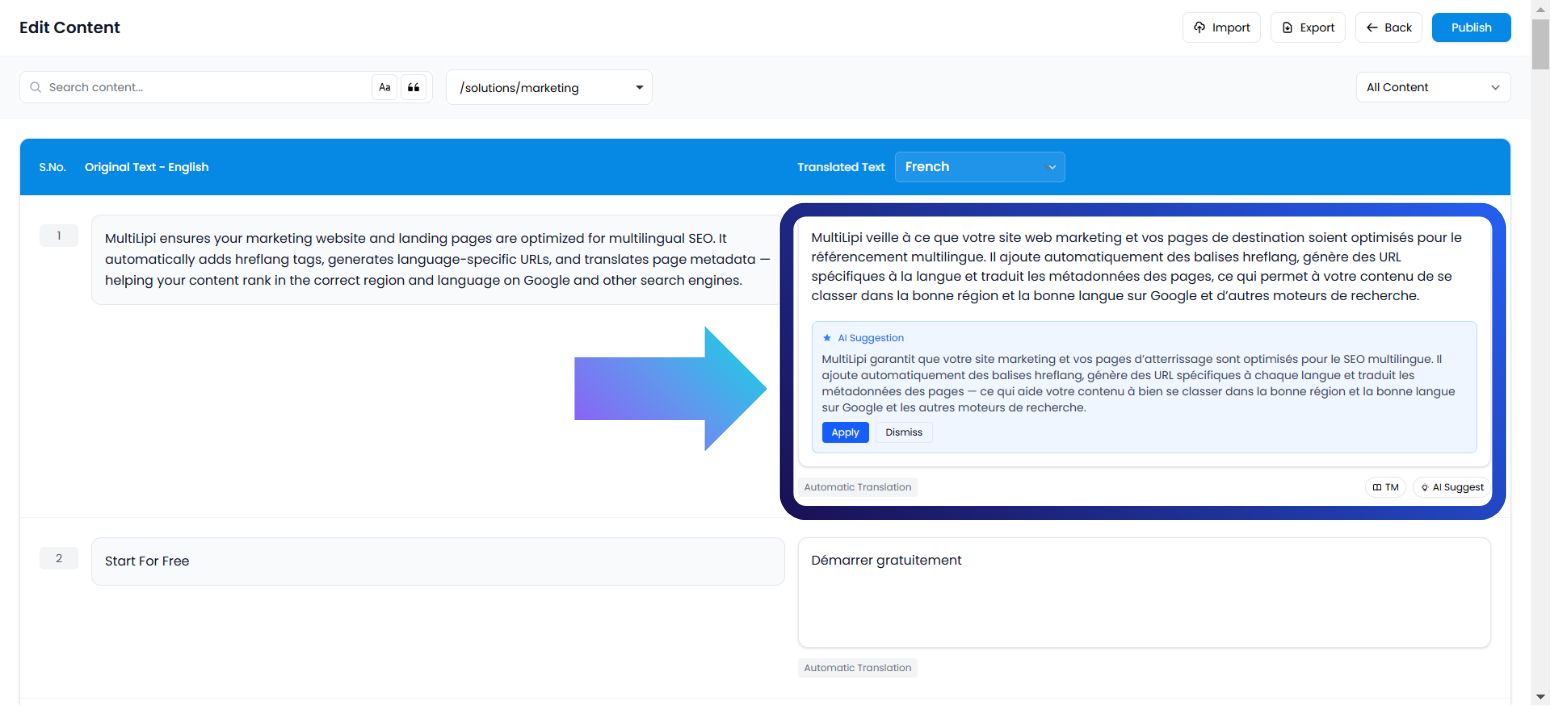
This interface displays your content as a structured list of string pairs (Source vs. Target). It is the ideal environment for linguists or editors who need to focus purely on the text without visual distractions.
ユースケース:
Rephrasing a specific sentence to be more SEO-friendly or correcting a grammatical nuance in a dense paragraph.
Execution Protocol:
Access Dashboard: Log in to your MultiLipi command center.
Select Project: Click on the specific project tile.
Navigate: Open the 言語 tab.
Launch Interface:選ぶ Side by Side Editor from the options.
Trigger AI: Locate the specific text block. On the translated side (right column), click the AIの提案 ボタン。
Commit:
Apply: Replaces the current text with the AI version (Consumes Quota).
Dismiss: Discards the suggestion (Zero Cost).
2. The Virtual Editor (Overlay Environment)
The WYSIWYG (What You See Is What You Get) context.
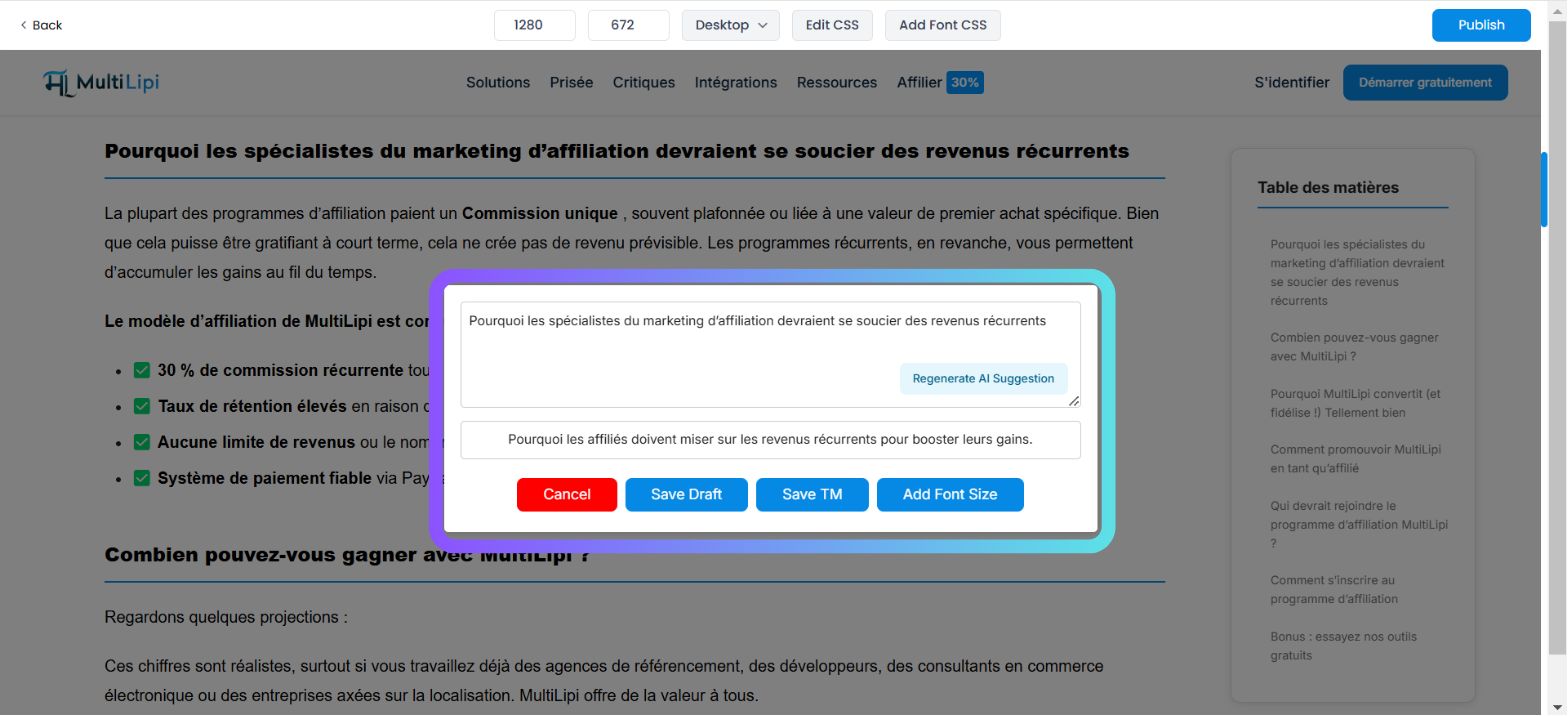
This interface overlays the translation engine on top of your live website. It allows you to edit text "in-situ," ensuring that your new translation fits within the visual boundaries of your buttons, banners, and menus.
ユースケース:
Shortening a blog title that is breaking the layout or rewriting a Call-to-Action (CTA) button to be punchier.
Execution Protocol:
Navigate: Go to Dashboard → Projects → URLs.
Launch Preview:をクリックします Editボタンの下の Virtual Preview column for a specific page.
Select Element: Hover over and click on any editable text block on the live preview.
Trigger AI: Tap the AIの提案 button in the popup toolbar.
Commit: Review the generated option and click 申し込む if it fits your layout.
3. The Variability Engine (Stylistic Diversity)
Generating semantic alternatives.
Sometimes a single translation isn't enough. The Variability Engine generates multiple stylistic versions of the same sentence, allowing you to choose the one that best fits your brand voice (e.g., Professional vs. Persuasive vs. Concise).
ユースケース:
A/B testing different marketing hooks for a landing page headline.
Execution Protocol:
Access Settings: Open your Project dashboard.
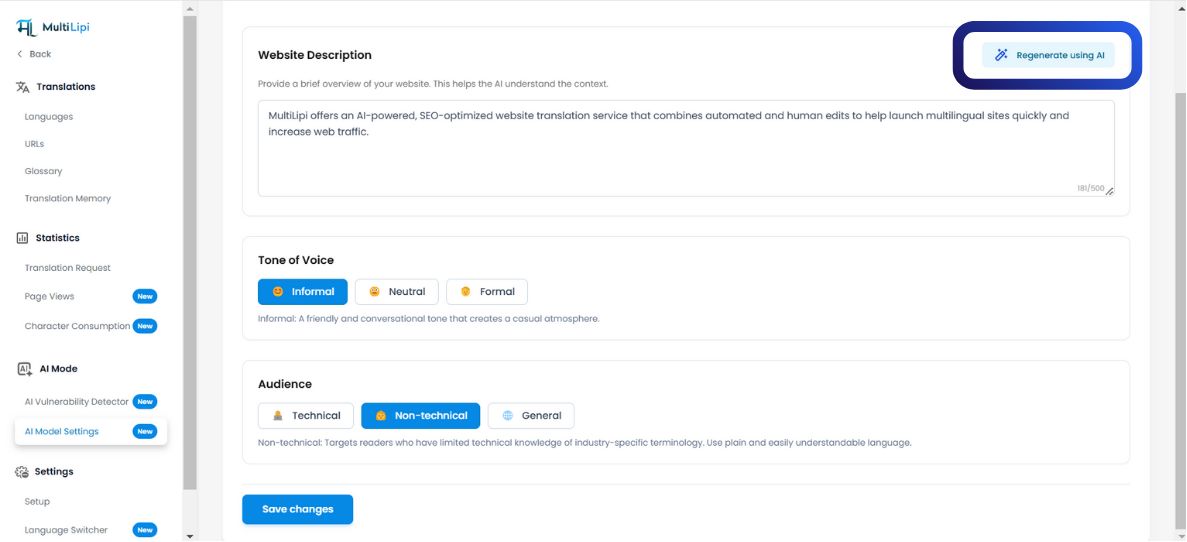
Navigate: Look for the AIモード section in the sidebar.
Configure:をクリックします AIモデル設定 icon.
Generate: Choose your desired AI Content Format. The system will present multiple variations based on the sentence structure.
Quick Apply: Select the version you prefer to instantly update the translation memory.
4. Quota Governance (Billing Logic)
Understanding the cost of generation.
It is critical to understand when credits are deducted from your plan.
| アクション | クオータの影響 |
|---|---|
| View Suggestion | Free. Generating a preview does not cost credits. |
| Apply Suggestion | 請求可能。 Quota is deducted only when you click "Apply." |
| Dismiss Suggestion | Free. Rejecting an AI draft costs nothing. |
Plan Note:
Free tier plans have strict caps on AI word consumption. Paid tiers offer expanded or unlimited generation limits depending on your enterprise agreement.