ヘルプ記事

Can I Import/Export My Translations in MultiLipi?

MultiLipi
MultiLipi 6/19/2025
5 Mins読む
ブログカバー画像

Enterprise localization often requires offline workflows. Whether you need to send 5,000 strings to a legal team for review or migrate legacy translation memory from another system, MultiLipi provides full read/write access to your linguistic data.

This guide covers the protocols for Ingesting External Data (Import)および Extracting Translation Memory (Export).

Ingesting Data (The Import Protocol)

Best for: Bulk updates, migrating from other platforms, or restoring backups.

You can overwrite or update your live translation index by uploading a structured file.

Step 1: Access the Linguistic Layer

  1. Navigate to your MultiLipi Dashboard.
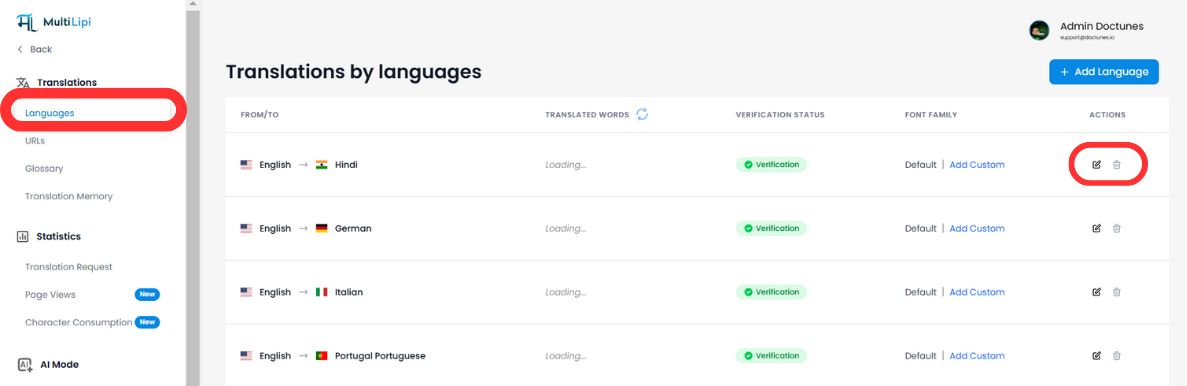
  2. Select Translations > Languages from the sidebar.
  3. Locate the specific language pair you wish to update (e.g., English → Hindi).
  4. Click the Edit Icon (pencil) to open the Translation Memory for that locale.
MultiLipi Translations by Languages page showing language pairs including English to Hindi, German, Italian, and Portugal Portuguese with verification status, font family settings, and Edit icon highlighted in the Actions column

Step 2: Initiate Ingestion

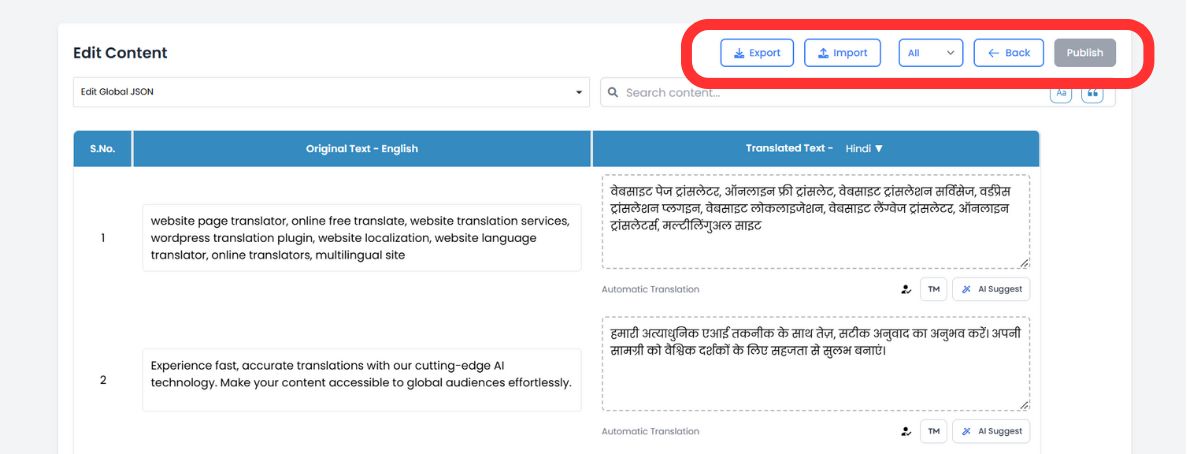
In the top toolbar of the editor, click the Import Icon.

Edit Content page for English to Hindi translation showing the toolbar with Export and Import buttons highlighted, displaying a table with Original Text in English and Translated Text in Hindi columns

Step 3: Upload & Configure

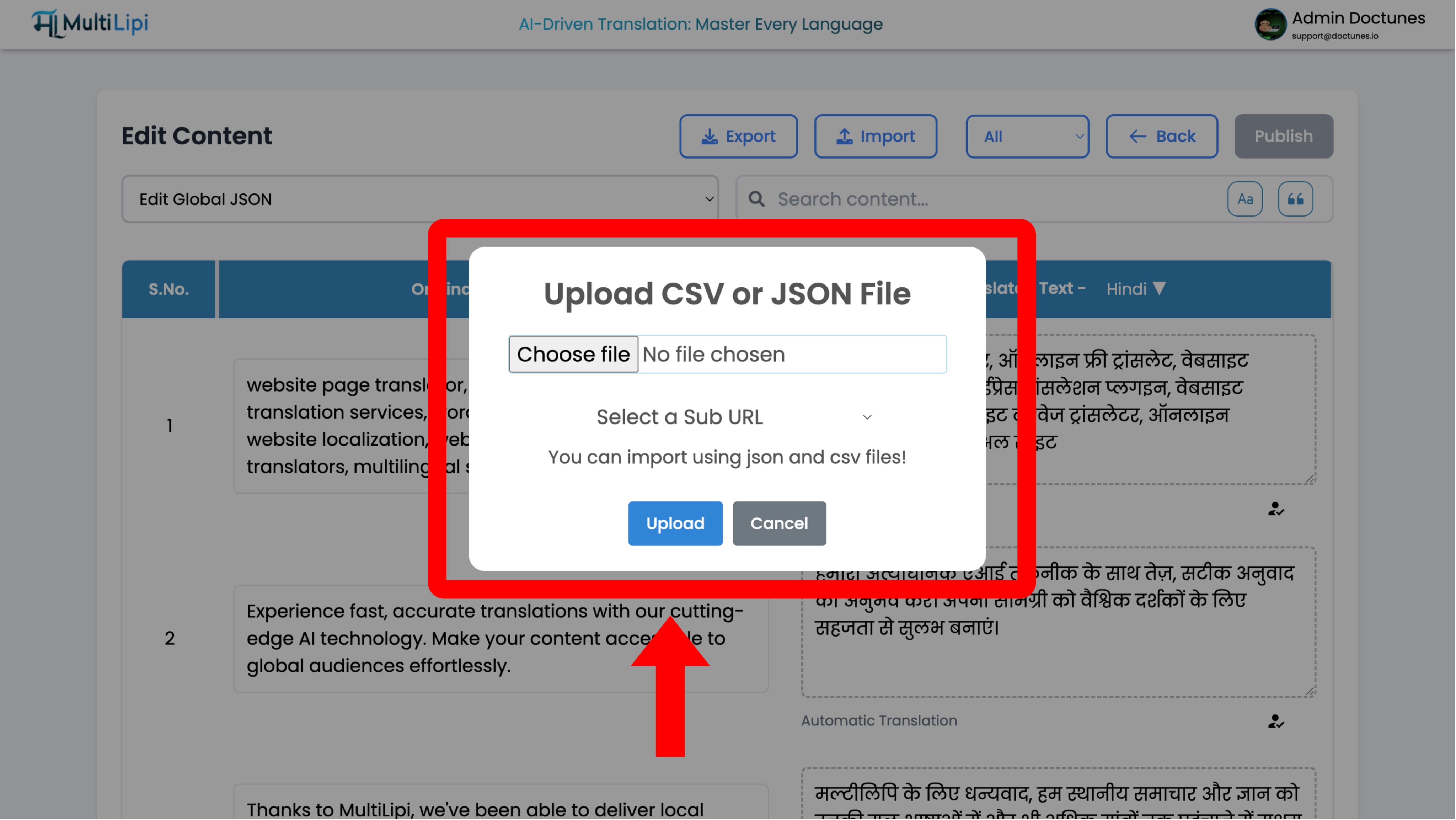
A configuration modal will appear:

File Selection

Upload your .csv or .json file.

Scope Definition

  • グローバル: Apply these translations to the entire domain.
  • Scoped: Use the "Sub URL" dropdown to apply these translations only to a specific page (e.g., /pricing).

Execute

Click Upload.

System Action

The system parses the file and instantly updates the translation memory. Live changes propagate to the edge network immediately.

Upload CSV or JSON File modal dialog showing file chooser with 'No file chosen', Select a Sub URL dropdown, informational text about json and csv file support, and Upload and Cancel buttons

Extracting Data (The Export Protocol)

Best for: Offline audits, professional human review, and compliance backups.

You own your data. You can download your entire translation memory at any time.

  1. 1. Access Editor

    Navigate to the same Language Editor used above.

  2. 2. Execute Extraction

    Click the Export Icon (next to Import).

  3. 3. Format Selection

    Choose .csv (for spreadsheets/Excel) or .json (for developers).

  4. 4. Result

    The system generates a structured file containing every source string and its current translation.

Strategic Use Cases

OperationScenario
Offline AuditExport your "Legal Terms" page to CSV and send it to your legal department for redlining in Excel. Import the approved file back.
Professional ReviewExport auto-translated content, send it to a certified human translator, and ingest their corrections in bulk.
Backup StrategyPerform weekly exports to maintain a local "cold storage" backup of your translation assets.

この記事は役に立ちましたか?

この記事では

共有

グローバル展開の準備はできましたか?

MultiLipiがコンテンツ戦略をどのように変革し、AI搭載の多言語最適化でグローバルなオーディエンスにリーチできるようになるか、ぜひご相談ください。

フォームにご記入いただければ、24時間以内に担当チームよりご連絡いたします。