ヘルプ記事

MultiLipi – Webflow統合ガイド

マルチリピ
マルチリピ 6/19/2025
10分 読む
ブログの表紙画像

Scale your visual development globally without backend code.

Webflow is the premier platform for visual development, but native localization can be complex and expensive. MultiLipi integrates directly into Webflow's architecture via a single script injection, instantly transforming your static pages and CMS collections into a multilingual infrastructure with full SEO indexing.

This guide details the integration process using Webflow's カスタムコード feature.

1. Deployment Prerequisites

Before beginning, ensure your environment meets the requirements:

Webflow Site Plan

You must be on a Basic Site Plan (or higher) to unlock the "Custom Code" feature.

MultiLipi API Key

Locate this in your Dashboard under Settings > General.

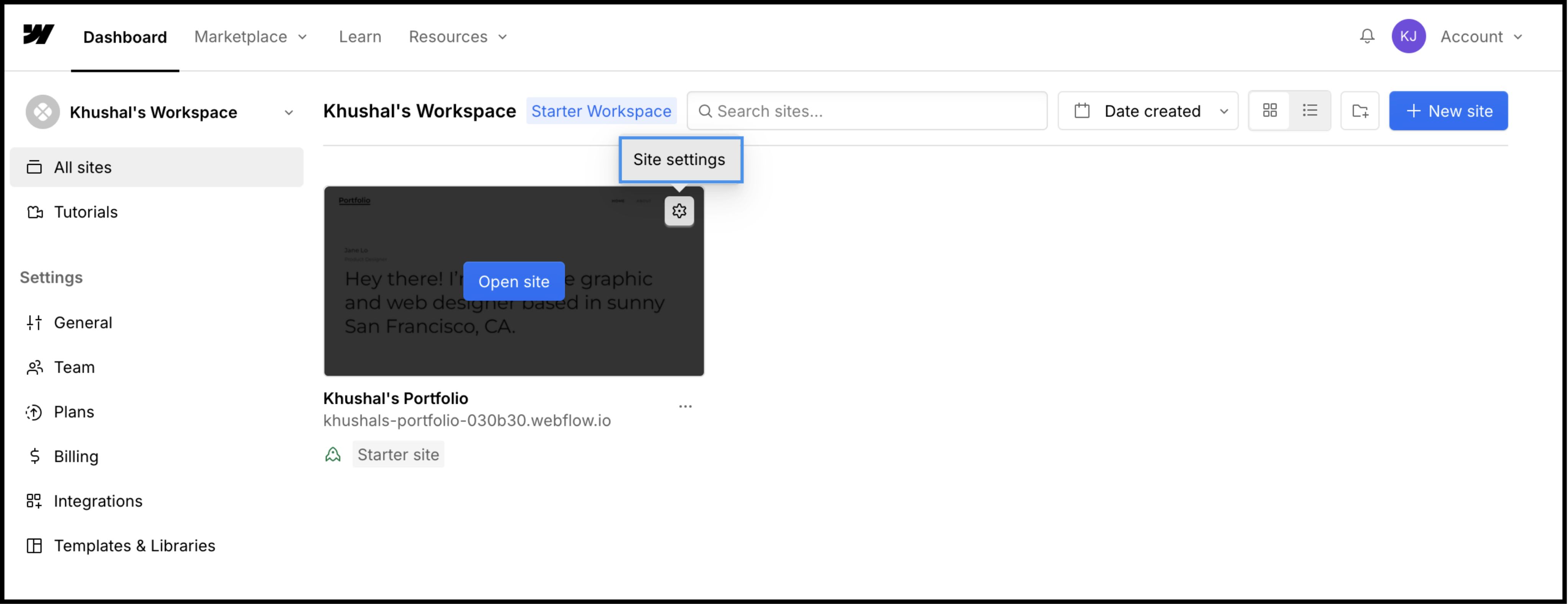
Webflow dashboard showing Khushal's Workspace with Site settings button highlighted on a starter site portfolio project

2. Step 1: Access Site Architecture

We will inject the translation engine into the global header to ensure it persists across all pages and CMS templates.

  1. 1

    にログインします。 Webflowダッシュボード .

  2. 2

    Locate your project card and click the Settings Icon (⚙️) (or select サイト設定 from the Designer menu).

  3. 3

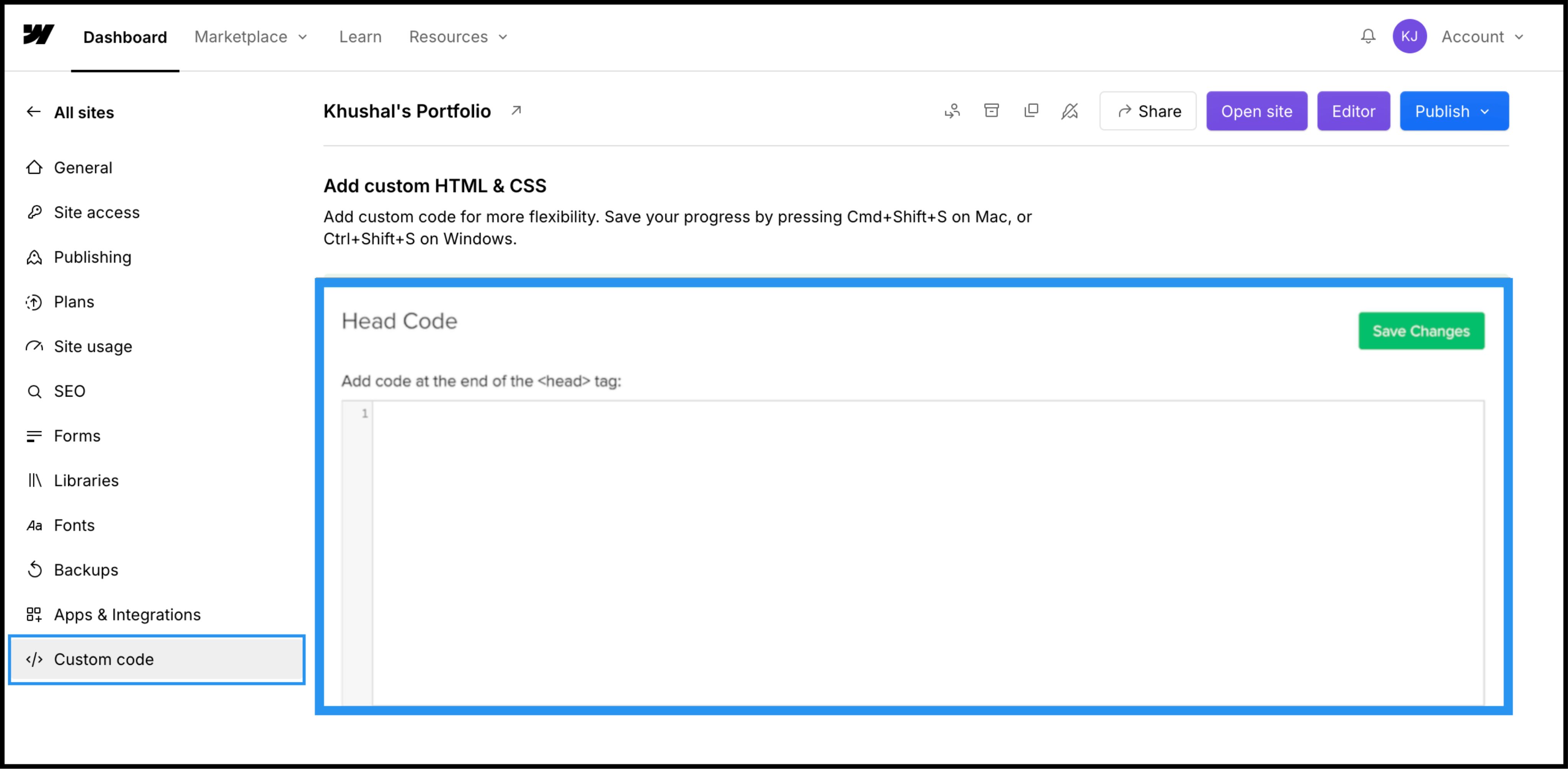
    Navigate to the カスタムコード tab in the top navigation bar.

3. Step 2: Inject the Infrastructure Script

  1. 1

    Scroll down to the field labeled "Head Code".

  2. 2

    手記: Do not place this in "Footer Code," as it will delay the translation loading and cause a "flash of untranslated content."

Action: Paste the Connection Script

Paste the following connection script into the field:

HTML
<script 
  src="https://multilipistorage.blob.core.windows.net/static/js/page_translations.js" 
  key="YOUR_API_KEY_HERE"
></script>

⚠️ Critical Config

  • 取り替える YOUR_API_KEY_HERE with the actual API Key copied from your MultiLipi dashboard.
  • Click the green 変更を保存 右上隅にあるボタン。
Webflow Custom Code settings page showing Head Code section with empty text field and green Save Changes button, Custom code menu item highlighted in left sidebar

4. Step 3: Deployment & Verification

Webflow does not run custom code in the Designer view. You must publish to see the engine in action.

著す

著す button and select your production domain (or .webflow.io staging domain).

Verify

Open the live link.

Visual Check

The Language Switcher should appear in the bottom-left corner.

CMS Check

Navigate to a CMS Collection page (e.g., /blog/post-1) and switch languages to ensure dynamic content translates correctly.

Troubleshooting Protocol

  • Switcher Missing? Confirm you published the site after saving the code.
  • Plan Check: Ensure your Webflow hosting plan is active; free staging sites often limit custom code execution on custom domains.

5. Optimization & Styling

Once deployed, MultiLipi works silently in the background.

設計の完全性

Because we only swap text nodes, your Webflow Interactions (IX2) and scroll animations remain perfectly intact.

Switcher Customization

You can reposition the switcher using our Dashboard settings or override its CSS to match your site's specific typography.

SEO Automation

We automatically generate the sitemap.xml entries and hreflang tags for your Webflow project, ensuring you rank in global search results without manual SEO work.

この記事は役に立ちましたか?

この記事では

共有

グローバル展開の準備はできていますか?

MultiLipiがあなたのコンテンツ戦略をどのように変革し、AI搭載の多言語最適化で世界中のオーディエンスにリーチできるかについて話しましょう。

フォームにご記入いただければ、24時間以内にチームがご連絡いたします。