ヘルプ記事

MultiLipi – WordPress 統合ガイド

マルチリピ
マルチリピ 6/19/2025
10分 読む
ブログの表紙画像

Integrate enterprise localization without database bloat.

Traditional WordPress translation plugins often slow down sites by duplicating every post and page in your database. MultiLipi takes a different approach. Our dedicated WordPress plugin acts as a lightweight API Connector, linking your site to our Neural Translation Cloud. This ensures your site remains fast while delivering SEO-optimized content in 120+ languages.

This guide details the installation and authentication process using the official MultiLipi 翻訳 plugin.

1. Deployment Prerequisites

Before beginning the installation, ensure you have:

Admin Access

You must have permissions to install and activate plugins (administrator role).

MultiLipi API Key

Locate this in your Dashboard under Settings > General.

2. Step 1: Install the Connector Module

The plugin is hosted in the official WordPress repository for security and ease of updates.

  1. 1

    にログインします。 WordPress管理ダッシュボード .

  2. 2

    に移動します プラグイン > 新規追加 in the left-hand sidebar.

  3. 3

    Search: Type "MultiLipi Translate" in the search bar.

  4. 4

    Install:クリック 今すぐインストール on the official MultiLipi plugin.

  5. 5

    Activate:クリック 作動させる to initialize the module.

System Action

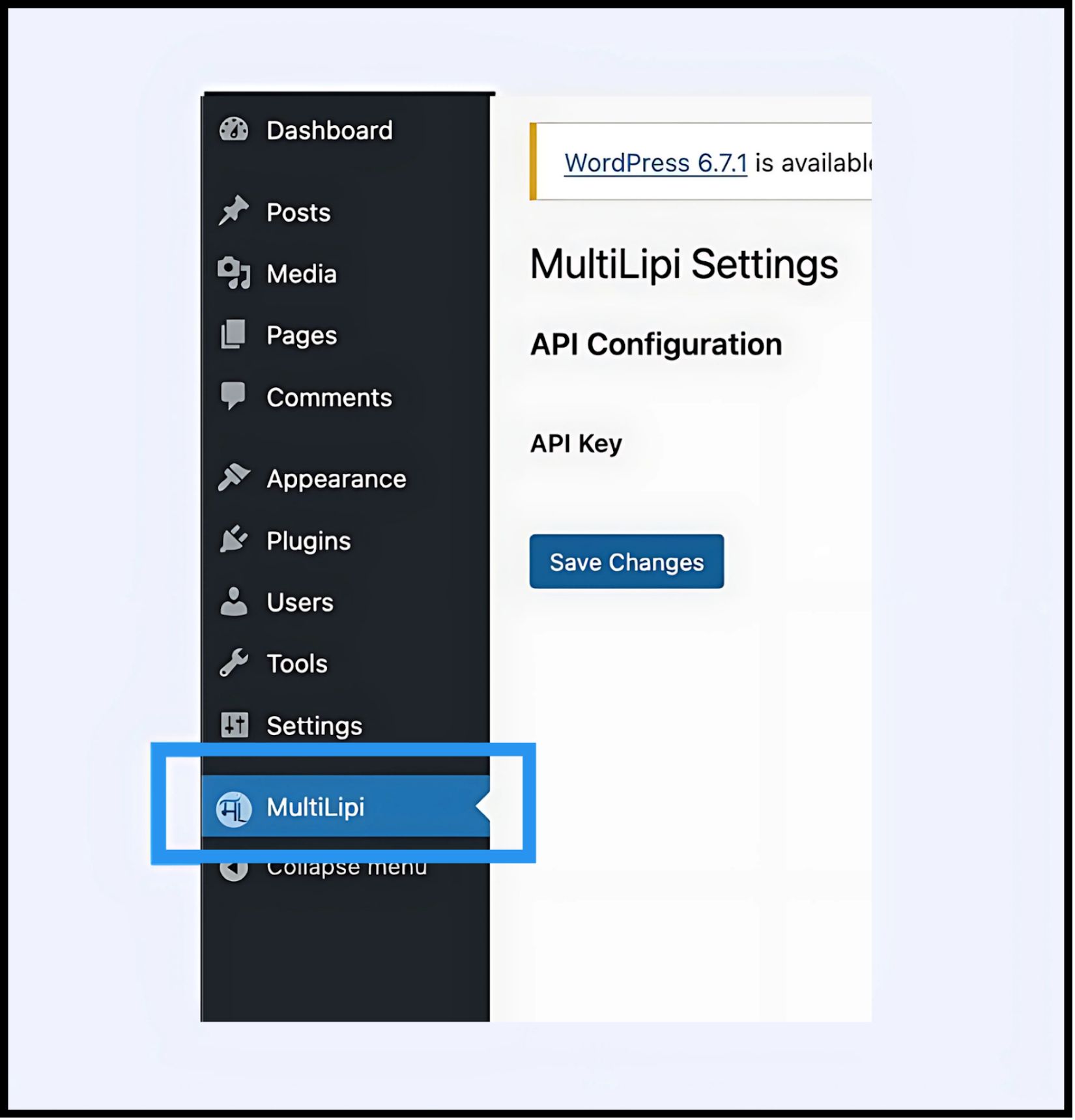
A new menu item labeled マルチリピ will appear under your main 設定 tab.

WordPress admin dashboard sidebar showing Settings menu expanded with MultiLipi submenu item highlighted in blue, alongside main navigation including Dashboard, Posts, Media, Pages, Comments, Appearance, Plugins, Users, and Tools

3. Step 2: Establish the API Handshake

You must authenticate the plugin to connect your site to your MultiLipi project.

  1. 1

    に移動します MultiLipi>の設定 .

  2. 2

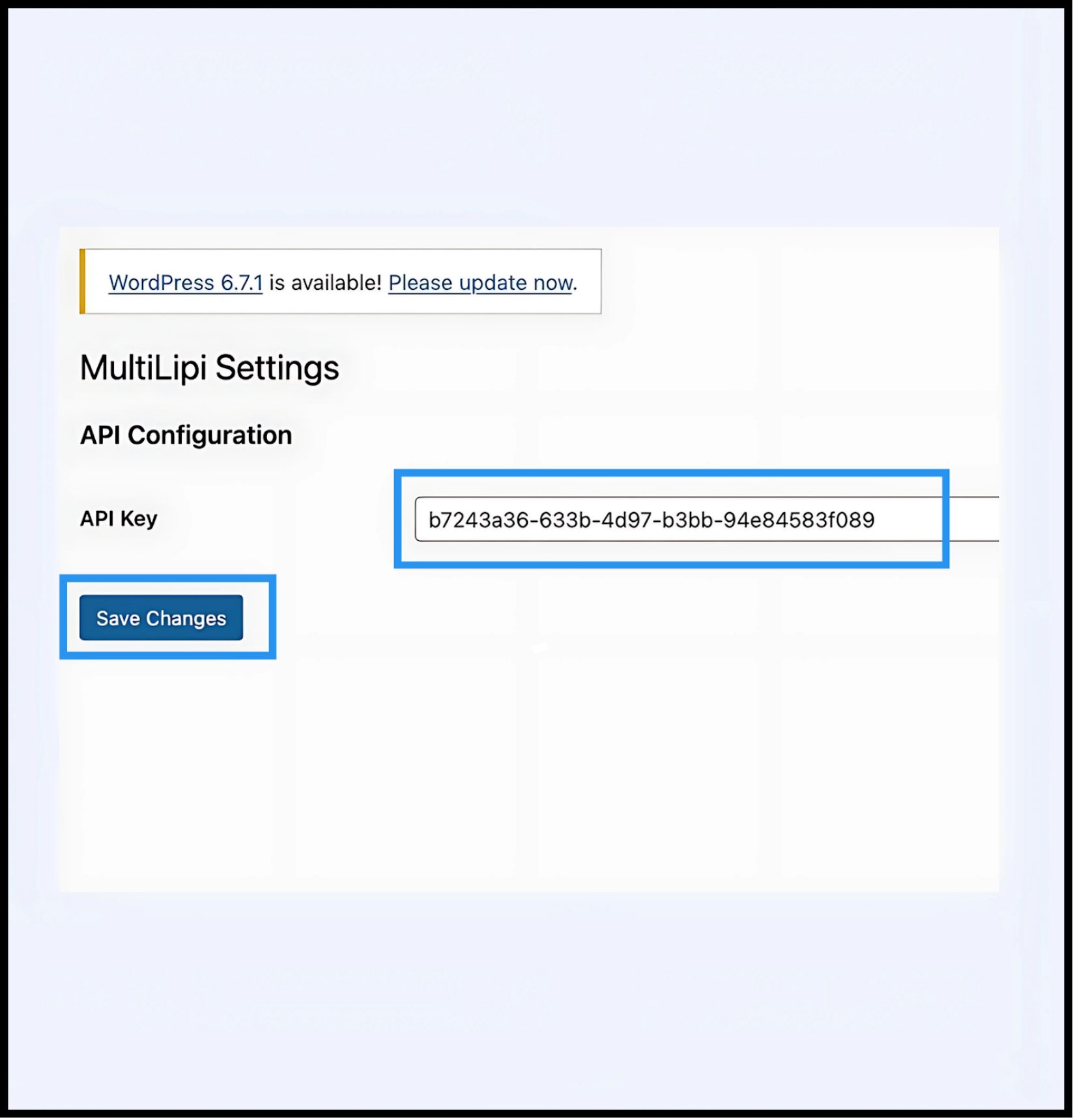
    API Configuration:を見つけます APIキー field.

  3. 3

    Authentication: Paste your unique Project API Key (copied from your MultiLipi Dashboard).

WordPress MultiLipi Settings page showing API Configuration section with API Key field containing example key b7243a36-633b-4d97-b3bb-94e84583f089 highlighted in blue, and Save Changes button highlighted below
  1. 4

    Commit:クリック 変更を保存 .

結果

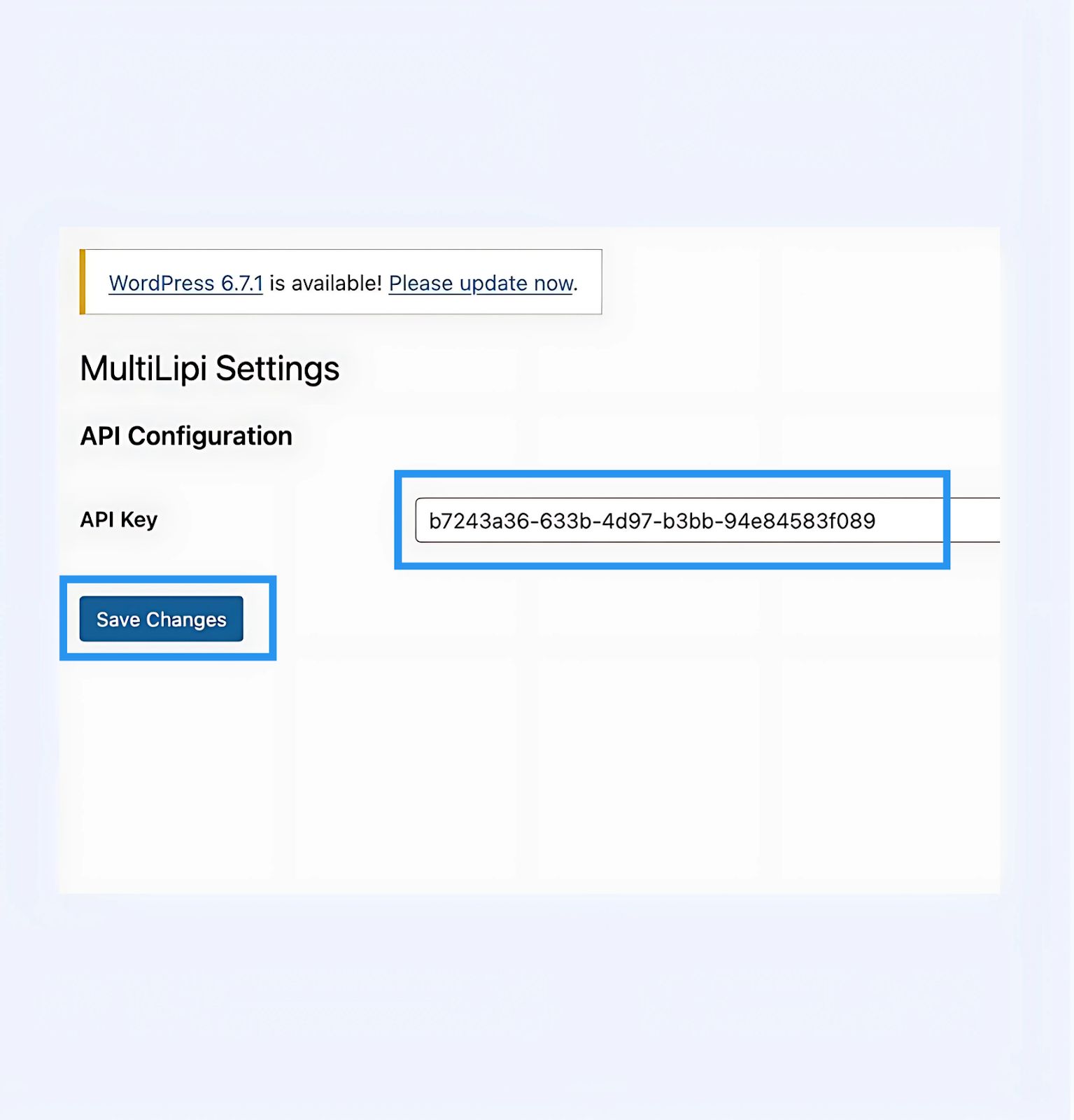
The plugin validates the key and establishes a secure connection to the translation engine.

WordPress MultiLipi Settings page after configuration, showing completed API Key field with example key and Save Changes button ready to be clicked

4. Step 3: Edge Verification

Once authenticated, the translation layer is active immediately.

Reload

Visit your public-facing website.

Visual Check

The Language Switcher should appear in the bottom-left corner (default position).

Functional Test

Switch languages and verify that content translates instantly.

Troubleshooting Protocol

  • Cache Purge: If you use caching plugins (WP Rocket, W3 Total Cache) or server-side caching (Varnish, Nginx), you must clear your cache after installation for the switcher to appear.
  • Conflict Check: Ensure no other translation plugins (like WPML or Polylang) are active on the same pages, as they may conflict with the DOM injection.

5. Post-Deployment Management

With the plugin active, your WordPress site is now synchronized with our infrastructure.

Glossary & SEO

You do not need to manage translations inside WordPress. Log in to your MultiLipi Dashboard to define 用語集のルール , configure Hreflang tags, and manage Translated URLs.

Visual Overrides

コマンドの ビジュアルエディター in the MultiLipi dashboard to fix any layout issues caused by text expansion (e.g., in German or Russian).

Updates

All translation edits made in the MultiLipi cloud reflect instantly on your WordPress site without needing to update the plugin or clear caches again.

この記事は役に立ちましたか?

この記事では

共有

グローバル展開の準備はできていますか?

MultiLipiがあなたのコンテンツ戦略をどのように変革し、AI搭載の多言語最適化で世界中のオーディエンスにリーチできるかについて話しましょう。

フォームにご記入いただければ、24時間以内にチームがご連絡いたします。